The 3-Folder Digital Workspace: How to Organize Your iPad for School to Prevent Digital Clutter
Picture this: you are sitting in a lecture hall or at your desk during study period, racing against the clock to pull up last Tuesday's history notes. You swipe across your iPad screen, past three separate document apps, four different PDF readers, and six random home screen pages packed with floating document icons, half-finished downloads, and screenshots of assignment prompts. Instead of finding what you need in seconds, you find yourself tapping through five different folders, reading through cryptic file names like Untitled (12).pdf and Essay_Final_v2_real_FINAL.docx, while the timer ticks down. By the time you finally locate the file, you have wasted precious minutes and your focus is completely broken.
This digital scramble happens to thousands of students every single semester. Learning how to organize your ipad for school is not about making your home screen look pretty for social media screenshots or following complicated productivity systems that take hours to maintain. It is about building a predictable, frictionless digital workspace where your course materials stay out of your way until you actually need them. When you eliminate digital clutter, you free up mental bandwidth for the actual learning, reading, and problem-solving required in your classes. Let's look closely at why standard digital organization habits fail students and how you can fix your file structure today.
Understanding Why Digital Clutter Accumulates on Student iPads
To fix a messy device, you first need to understand the mechanics of how digital clutter builds up in the first place. Unlike physical backpacks where space runs out naturally, your iPad offers an illusion of infinite digital storage. This lack of physical boundaries tricks your brain into saving everything indefinitely without evaluating its utility.
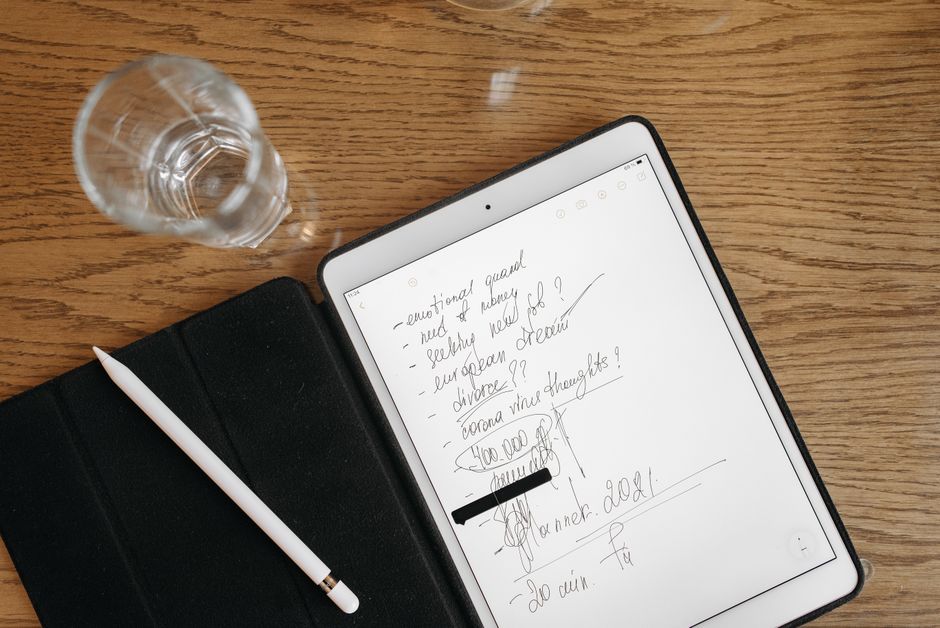
When teachers share resources through learning management systems, airdrop documents in class, or ask you to export web pages as PDFs, these files land in your device's default download directory or app storage containers. Because you are busy moving from one class to the next, you rarely take thirty seconds to rename and file them properly. Over weeks and months, these scattered files compound into a digital landfill. Recognizing this pattern is the first step toward reclaiming your study environment and establishing a reliable system that stays organized even during exam weeks.
The Myth of Infinite Storage and the Default Download Trap
The primary driver of digital disorganization is the modern design of tablet operating systems. iPads treat every downloaded file, screenshot, and web clipping as equally important, dropping them into a catch-all folder without prompting you to categorize them. When storage capacity is large, you never face the immediate physical consequence of a backpack zipper refusing to close because it is stuffed with crumpled papers. Instead, the consequence is invisible and psychological: friction.
Every time you have to search through a disorganized file tree, you expend small amounts of attention and energy. This phenomenon mirrors the way physical clutter creates low-level distraction in a study room. To combat the default download trap, you must establish strict rules for incoming files. Nothing should live in your general downloads folder permanently. Every file that enters your iPad must be immediately sorted, renamed according to a standard convention, or deleted if it is no longer useful. By treating your iPad's storage with the same intentionality as a physical desk drawer, you stop clutter before it has a chance to settle.
How Fragmented Apps Create Fragmented Thinking
Another major contributor to digital overwhelm is app fragmentation. Many students store their handwritten notes in one note-taking app, their PDF textbooks in a second reading app, their typed essays in a cloud-based word processor, and their homework worksheets in a third annotation tool. When your subjects are scattered across four or five siloed applications, finding a single assignment requires you to remember not just what the file was named, but which specific app holds it.
This fragmentation breaks your workflow and makes it difficult to build a realistic school routine because your tools are constantly fighting against each other. Centralizing your workflow means picking one primary hub for document storage—usually the native Files app or a dedicated cloud drive—and using your specialized apps strictly for active editing rather than long-term archiving. When your files live in a single, predictable folder hierarchy, your choice of app becomes secondary, and your workflow becomes infinitely more resilient.
The 3-Folder Framework: A Step-by-Step Implementation Guide
The 3-Folder Digital Workspace is a streamlined system designed specifically for students who want maximum organization with minimum maintenance. Instead of creating a complex maze of nested subfolders for every week of the semester, this framework relies on exactly three primary folders inside your main school directory. This structure forces a clean separation between active work, reference materials, and completed archives.

By limiting your top-level structure to three destinations, you eliminate decision fatigue when saving new files. You always know instantly where a document belongs. Below are the first three steps of the five-step method to set up this system on your iPad today, followed by an actionable checklist to verify your progress.
Step 1: Purge and Consolidate Existing Files
Before you build your new folder structure, you must clear out the accumulated debris from past weeks or semesters. Open your Files app and navigate to your main storage location. Create a temporary folder titled Review and move every single school-related file, PDF, screenshot, and document into it. Do not try to organize them yet; just get them out of your daily view.
Once everything is gathered in that single temporary container, go through it item by item with a ruthless sorting mindset. Apply a simple decision rule: if a file is an outdated draft, an unreadable screenshot, or a completed worksheet from a unit you have already been tested on and will not revisit, delete it immediately. For the files you decide to keep, identify your current active subjects. This initial sweep clears out the digital noise so you can build your new workspace on a clean slate rather than hiding old clutter inside new folders.
Step 2: Establish the Three Core Folders Per Subject
With your device cleared of old clutter, navigate to your main school directory and create a master folder for each subject you are taking this term (for example: Biology, World History, Calculus, English Lit). Inside *each* subject folder, create exactly three subfolders using this precise naming convention:
- 01_Active: Reserved exclusively for assignments, readings, and projects you are currently working on this week.
- 02_Reference: Home for syllabi, textbook PDFs, formula sheets, and foundational notes you need to consult throughout the term.
- 03_Archive: The holding tank for submitted essays, finished quizzes, and past units that are complete but required for end-of-semester review.
Quick Tip: Use a two-digit prefix like 01, 02, and 03 at the beginning of your folder names. iPad operating systems automatically sort files alphabetically or numerically, meaning your core folders will always stay locked in their proper workflow order at the very top of the screen.
Step 3: Implement the Universal Naming Rule
A folder system only works if the files inside it are easy to identify at a glance. Stop saving documents with generic titles generated by scanners or websites. Adopt a universal naming rule for every single file that enters your iPad workspace: **[Subject]_[Topic]_[Type]**. For example, instead of naming a document *Notes(4).pdf*, name it *Bio_CellDivision_LectureNotes.pdf*.
If the file is an assignment you need to submit, add a short date or version tag at the end, such as *Hist_FrenchRevolution_Essay_Draft1.docx*. This naming convention allows the built-in iPad search bar to instantly surface any document the moment you type a keyword. When your files are clearly named, you no longer have to open three different PDFs just to figure out which one contains the study guide for Friday's quiz.
To help you put these first three steps into action right now, review this quick verification checklist:
- Open your iPad Files app and create a temporary 'Review' folder for all scattered documents.
- Delete all outdated screenshots, duplicate downloads, and finished scratch work from previous units.
- Create a dedicated master folder for each of your current school subjects.
- Build the three core subfolders (01_Active, 02_Reference, 03_Archive) inside every subject folder.
- Apply the universal naming formula ([Subject]_[Topic]_[Type]) to your three most recent school files.
- Empty your device's recently deleted folder to free up immediate storage space.
Now that your foundation is built and your core subject folders are established with clean naming conventions, you are ready to configure your daily workflows for incoming files. In Part 2, we will cover Step 4, which details how to set up automated shortcuts and cloud synchronization so your files sort themselves without manual dragging.
Step 4: Automate Incoming File Capture
Manually sorting every document, screenshot, and downloaded syllabus can feel tedious, especially during the middle of a busy school day when you are rushing from one class to another. The secret to maintaining a clean digital workspace for the entire semester without burning out is automation. By setting up smart rules and default destinations on your tablet, you can ensure that incoming materials land directly where they belong with zero extra effort on your part.
Start by configuring your web browser download preferences. If you use Safari or Chrome on your iPad, go into the browser settings and change the default download destination from the general root downloads folder to your designated 01_Active folder for your primary current subject, or a temporary holding inbox that you clear out once a day. This simple adjustment prevents random web-clipped articles, assignment guidelines, and reference PDFs from disappearing into an unmonitored system folder.
Next, take advantage of built-in scanning and document capture features within your notes app or files app. When a teacher hands out a physical worksheet or displays a diagram on the board that you need to capture, use the built-in document scanner rather than taking a standard camera snapshot. The scanner automatically crops the edges, converts the image into a high-contrast PDF, and prompts you to name and file the document immediately before saving it. By capturing documents cleanly at the moment of creation, you eliminate the messy step of converting and renaming loose photo files later in the evening when your energy is low. If you want to dive deeper into streamlining your academic workload, review this helpful guide on how to study without staring at your notes for more effective study methods.
Step 5: Establish a Weekly Maintenance Routine
Even the best digital organization systems require minimal upkeep to prevent slow degradation over time. Without a regular maintenance habit, files will inevitably slip into the wrong folders, temporary drafts will multiply, and your desktop will start accumulating random screenshots again. Setting up a consistent weekly maintenance routine ensures your workspace remains pristine throughout the entire school year.
Pick a specific, low-stress window in your weekly calendar—such as Sunday afternoon or Friday evening after your last class—to run a ten-minute digital sweep. During this sweep, open your 01_Active folders and review the documents you worked on during the week. Move any completed essays, finished worksheets, and past quizzes into your 03_Archive folders so your active workspace stays lean and focused exclusively on current assignments. Delete any duplicate downloads or temporary screenshots that served their purpose during the week.
Finally, check your cloud backup synchronization status to ensure all your local iPad changes have safely uploaded to your preferred cloud drive. This final safety check protects your academic files against accidental device loss, hardware failure, or unexpected software updates. When you treat your weekly maintenance as a non-negotiable study habit, you remove the anxiety of digital clutter and ensure that your tablet is always primed for optimal productivity.
Your 15-Minute Reset
If your iPad file system is currently a chaotic maze and you do not have hours to overhaul it, use this rapid 15-minute reset plan today to restore order:
- The Master Sweep (3 Minutes): Open your Files app, create a temporary folder named Inbox, and drag every loose school file, PDF, and screenshot into it.
- The Subject Setup (4 Minutes): Create your current subject folders with the three core subfolders (01_Active, 02_Reference, 03_Archive) inside each one.
- The Quick Sort (5 Minutes): Go through your temporary Inbox folder and move active files into their correct 01_Active subfolders, deleting anything you no longer need.
- The Final Polish (3 Minutes): Apply the universal naming rule to your three most important upcoming assignments and empty your device's trash bin.
Preventing the Same Backlog Next Week
Fixing your iPad organization once feels great, but the true test of any system is whether it survives contact with a heavy school schedule. If you do not establish proactive boundaries, your clean folder structure will slowly devolve back into a digital landfill within a month. To maintain your newly organized workspace, you need specific decision rules that govern how new files enter your device.

Preventing future digital backlogs is entirely about reducing friction at the exact moment you receive new information. When you adopt strict habits for incoming documents, you stop clutter before it can take root in your device's storage. Let's look at two practical operational rules that keep your digital study environment running smoothly week after week.
The Two-Minute Rule for Incoming Files
The most common cause of digital disorganization is the deferred task: telling yourself you will properly rename and file a downloaded PDF later when you have more time. That "later" almost never arrives in a busy student schedule. To break this cycle, adopt the strict two-minute rule: if a newly downloaded file, airdropped document, or scanned handout requires less than two minutes to rename according to your standard convention and drop into the correct subject folder, you must do it immediately.
Applying this rule requires zero extra time in the grand scheme of things, but it completely eliminates the accumulation of unfiled documents. When a teacher sends out a reading assignment at the end of class, spend thirty seconds right then and there filing it properly before locking your tablet screen. By handling incoming files instantly, you prevent the mental burden of a growing digital backlog and keep your focus entirely on your coursework.
Enforcing a Strict Zero Inbox Policy for Downloads
Your device's default downloads directory should be treated as a transit lounge, never a permanent home. A zero-inbox policy means that at the end of every single school day, your download folder must be completely empty. Every file must either be filed into its appropriate subject folder or deleted permanently.
This policy forces a daily micro-review that prevents clutter from compounding over weeks. If a file does not fit neatly into your 01_Active, 02_Reference, or 03_Archive structure, evaluate whether you actually need it for your classes. If the answer is no, delete it. If the answer is yes, create a home for it immediately. Maintaining this boundary ensures your iPad remains a lightning-fast, distraction-free study tool throughout the entire academic term. For students balancing heavy course loads, exploring strategies like an AI study workflow can also help streamline your overall academic output.
Key Takeaway: Digital organization on your iPad is not a one-time aesthetic project; it is an ongoing operational habit. By enforcing strict naming conventions, limiting your top-level folder count, and running a quick weekly maintenance sweep, you protect your focus and eliminate academic friction.
Frequently Asked Questions
What if I share my iPad with family members?
If you share your tablet with siblings or parents, create a dedicated user profile if your operating system version allows it, or establish a master top-level folder named strictly with your name or initials. Keep all your school subfolders nested exclusively within your personal container, and never mix personal photos, family documents, or external media files inside your academic directory.
Should I use local storage or cloud sync for school files?
Cloud synchronization is vastly superior for student workflows because it creates an automatic backup and lets you access your notes from your phone or laptop if needed. However, ensure your cloud drive mirrors the exact same folder hierarchy outlined in the 3-Folder Framework so your offline and online file trees match perfectly.
How do psychoactive group project files that change constantly get handled?
For collaborative assignments, create a temporary project folder inside your 01_Active directory. Append version numbers or dates to every collaborative document as you revise them (for example: *History_GroupProject_v3.docx*). Once the project is submitted for a grade, move the final version into your 03_Archive folder and delete obsolete drafts to keep your workspace clean.

What should I do with old subjects from previous semesters?
At the conclusion of each term or semester, move your entire subject master folder out of your active school directory and into a master archive folder titled *Past_Semesters*. This keeps your current academic year clean and lightning-fast while preserving your past notes and reference materials securely in case you need them for cumulative exams later on.
Conclusion
Mastering how to organize your iPad for school comes down to building a predictable, low-maintenance environment that supports your actual learning rather than fighting against your workflow. By clearing out legacy clutter, adopting the 3-Folder Framework, establishing strict naming rules, and committing to a quick weekly reset, you transform your tablet from a digital junk drawer into a streamlined academic command center.
Choose one simple action from this guide to complete right now—such as creating your core subject folders or running the 15-minute reset on your downloads directory. If you know a classmate who is currently drowning in scattered PDF downloads and lost assignment files, consider sharing this guide with them to help them reclaim their study workflow.
This article offers general educational information, not medical advice. If distress is persistent or you feel unsafe, speak with a trusted adult, a school counselor or a qualified health professional.
Questions or feedback? Email us at organizeddailylife@gmail.com.
Comments